 Vela Rewards
Receipt Scanning
Learn how to upload receipts using the hosted pages or direct API upload.
Overview
Receipt scanning transforms purchase receipts into sustainability data. Users upload their receipts, and Vela's system extracts products, matches them to our database, and calculates Vela points.
There are two integration approaches:
- Hosted Pages - Redirect users to Vela's hosted upload page
- Direct Upload - Send receipt images directly via API
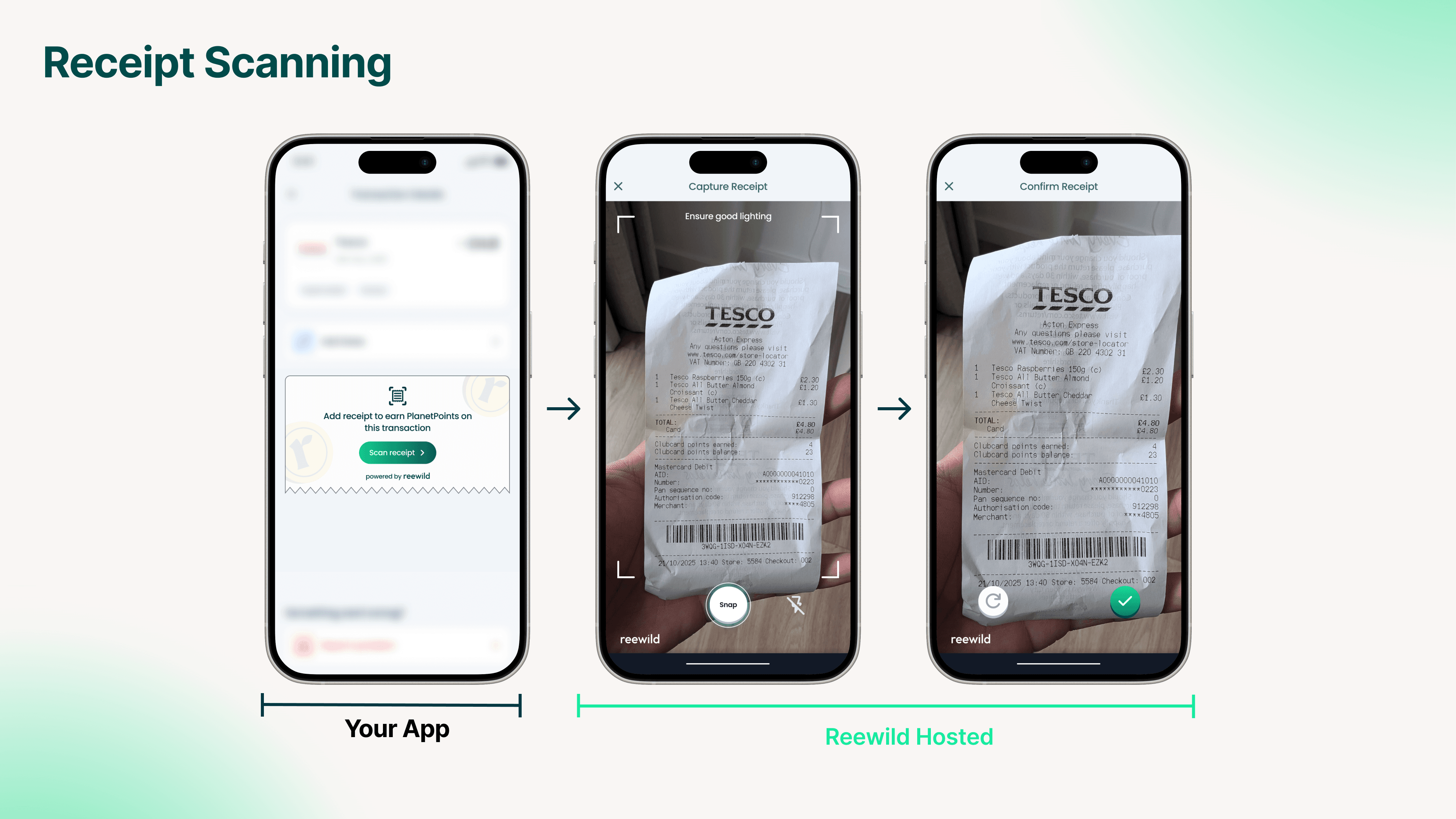
Hosted Pages (Recommended)
The hosted pages provides a fully-managed upload experience. Your application initiates a session, redirects the user to the hosted page, and receives results via webhooks.
Initialize Session
Create a session to get a redirect URL:
Endpoint: POST /track/receipts/session
Required field:
userId- The enrolled user's ID
Optional fields:
transactionId- Your transaction referenceamount- Transaction totalmerchantName- Store nameredirectUri- Return URL after uploadtransactionTimestamp- Purchase date/time (ISO 8601)
Response:
{
  "redirectUrl": "https://hosted.velarewards.com?sessionId=xxx"
}
Redirect User
Direct the user to the redirectUrl. After upload, they'll be redirected to your redirectUri (if provided) or the page will auto-close.
Handle Results
Listen for webhook events to track processing:
receipt_uploaded- Image receivedreceipt_extracted- OCR completereceipt_validated- Receipt verifiedreceipt_completed- Points awardedreceipt_failed- Processing error
See Webhooks for payload details.
Direct Upload
For full control over the upload experience, send receipt images directly via API.
Endpoint: POST /track/receipts
Content-Type: multipart/form-data
Required fields:
| Field | Type | Description |
|---|---|---|
userId | String | Enrolled user's ID |
transactionId | String | Your transaction reference |
amount | Number | Transaction total (min: 0.01) |
merchantName | String | Store name |
receiptImage | File | Receipt image (JPEG/PNG) |
transactionTimestamp | DateTime | Purchase date/time (ISO 8601) |
Response:
{
  "receiptID": "rec_abc123...",
  "message": "Receipt uploaded successfully"
}
Check Processing Status
Poll for status if you're not using webhooks:
Endpoint: GET /track/receipts/{id}/status
Returns the current processing stage and any available data from completed stages.
Processing Stages
Receipts progress through these stages:
- Uploaded - Image received and stored
- Extracted - OCR extracted line items
- Enriched - Products matched to database
- Validated - Receipt verified
- Scored - Points calculated
- Completed - Processing finished
Each stage updates the receipt status with relevant data.
Error Handling
Common error codes returned in receipt_failed webhooks:
| Error Code | Description |
|---|---|
MERCHANT_NAME_NOT_FOUND | Store couldn't be identified |
NO_VALID_FOOD_ITEMS | No eligible products found |
NOT_AUTHENTIC | Duplicate or fraudulent receipt |
ALREADY_EXISTS | Receipt already processed |