 Vela Rewards
Managing Credentials
Access and manage your API credentials from the application detail page.
Application Details
Select an application from your applications page to view its details.
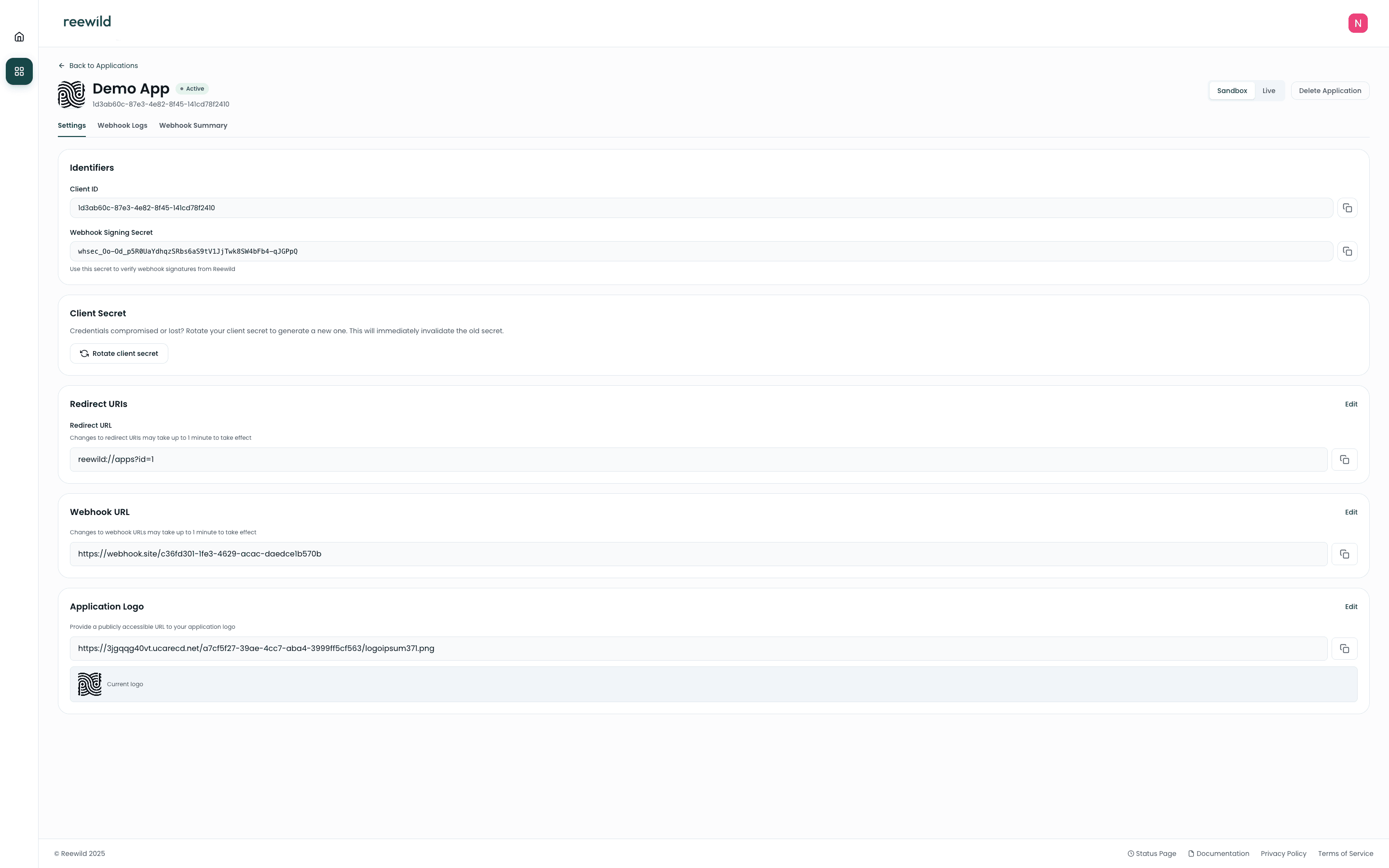
API Credentials
Each application has unique credentials:
| Credential | Description |
|---|---|
| Client ID | Public identifier for your application |
| Client Secret | Private key used to authenticate API requests |
| Webhook Signing Secret | Secret used to verify webhook signatures |
Keep your Client Secret and Webhook Signing Secret confidential. Never expose them in client-side code or public repositories.
Viewing Credentials
- Navigate to your application
- Select the environment (Sandbox or Production)
- View your Client ID and secrets
The Client ID is always visible. Secrets are hidden by default and require explicit action to reveal.
Production Access
Production Access Required — To activate your Live credentials and make production API requests, contact our developer support team at info@velarewards.com. Complete all integration testing in Sandbox before requesting production credentials.
Credential Rotation
Rotate Client Secret
If your client secret is compromised or as a security best practice:
- Click Rotate Secret on the application detail page
- Confirm the rotation
- Update your application with the new secret
Rotation immediately invalidates the previous secret. Ensure you update your application promptly to avoid downtime.
Using Credentials
Include your credentials in API request headers.
All API requests require:
- The
api-versionquery parameter - Your
x-client-idandx-client-secretheaders
GET /issuers/users/{id}/summary?api-version=1.0Request Headers
| Header | Description |
|---|---|
x-client-id | Your application's Client ID |
x-client-secret | Your application's Client Secret |
Verifying Webhook Signatures
Why Sign Webhooks?
Since public URLs are accessible to the internet, anyone could theoretically find your webhook URL and send fake data. You need a way to verify that the data you receive is legitimately from PlanetPoints and hasn't been tampered with.
Think of the Webhook Signing Secret as a unique password shared only between our system and your server. It acts like a digital "wax seal" on an envelope:
- We sign it — Before sending the webhook, we mix the data with your unique Secret to create a "Signature"
- You verify it — When you receive the data, you perform the same calculation. If your result matches the signature we sent, the data is authentic
Where to Find Your Secret
You can find your unique signing secret in the Developer Console under your application's Settings. Keep this key private—never share it on the client-side or in public repositories.
How to Validate
To verify the validity of a webhook, follow this process:
| Step | Action |
|---|---|
| 1. Retrieve the Signature | Look for the signature in the HTTP headers of the incoming request (e.g., X-Signature-256) |
| 2. Get the Raw Body | Take the raw, unparsed JSON body of the request |
| 3. Compute the Hash | Use your Webhook Signing Secret and the Raw Body to calculate an HMAC-SHA256 hash |
| 4. Compare | Compare the hash you generated with the signature in the header |
Validation Result
| Result | Action |
|---|---|
| Match | The request is authentic. Process the event. |
| Mismatch | The request is fake or tampered with. Reject it (return 401 or 403). |
Environment Credentials
Each environment (Sandbox/Production) has its own set of credentials:
| Environment | Use Case |
|---|---|
| Sandbox | Development and testing |
| Production | Live user data |
Always test with Sandbox credentials before deploying to Production.